If you’re building or upgrading a smart home, you’ve probably realized that juggling a dozen different apps, one for lights, another for locks, a third for your thermostat, defeats the purpose of automation. That’s where a smart home manager app comes in. Think of it as the command center for your connected house, letting you control everything from a single interface on your phone. Whether you’re a DIY enthusiast wiring up your first smart devices or a homeowner managing a fully loaded system, a solid manager app transforms chaos into genuine convenience. The right choice keeps your home secure, responsive, and easy to control without the headaches.
Table of Contents
ToggleKey Takeaways
- A smart home manager app consolidates control of multiple smart devices into a single unified interface, eliminating the need to juggle separate apps for lights, locks, thermostats, and security systems.
- Automations and routines created within a smart home manager app enable powerful time-saving scenarios like ‘Goodnight’ routines that lock doors and arm security in one tap, plus energy-saving schedules that reduce utility bills.
- Compatibility verification is essential before selecting a smart home manager app, as different ecosystems (Amazon Alexa, Google Home, Apple HomeKit, Samsung SmartThings) have varying device support—check manufacturer lists beforehand.
- Enable two-factor authentication (2FA) on your smart home manager app immediately, use a strong 16+ character password, and limit user permissions to prevent unauthorized access to locks, cameras, and security systems.
- Strategic hub placement in a central location with strong WiFi, along with organizing devices by room and customizing your dashboard, ensures responsive controls and intuitive daily operation of your smart home.
- Regular firmware updates and monthly reviews of device logs help maintain security, identify connection issues, and optimize performance in your smart home ecosystem.
What Is a Smart Home Manager App and Why You Need One
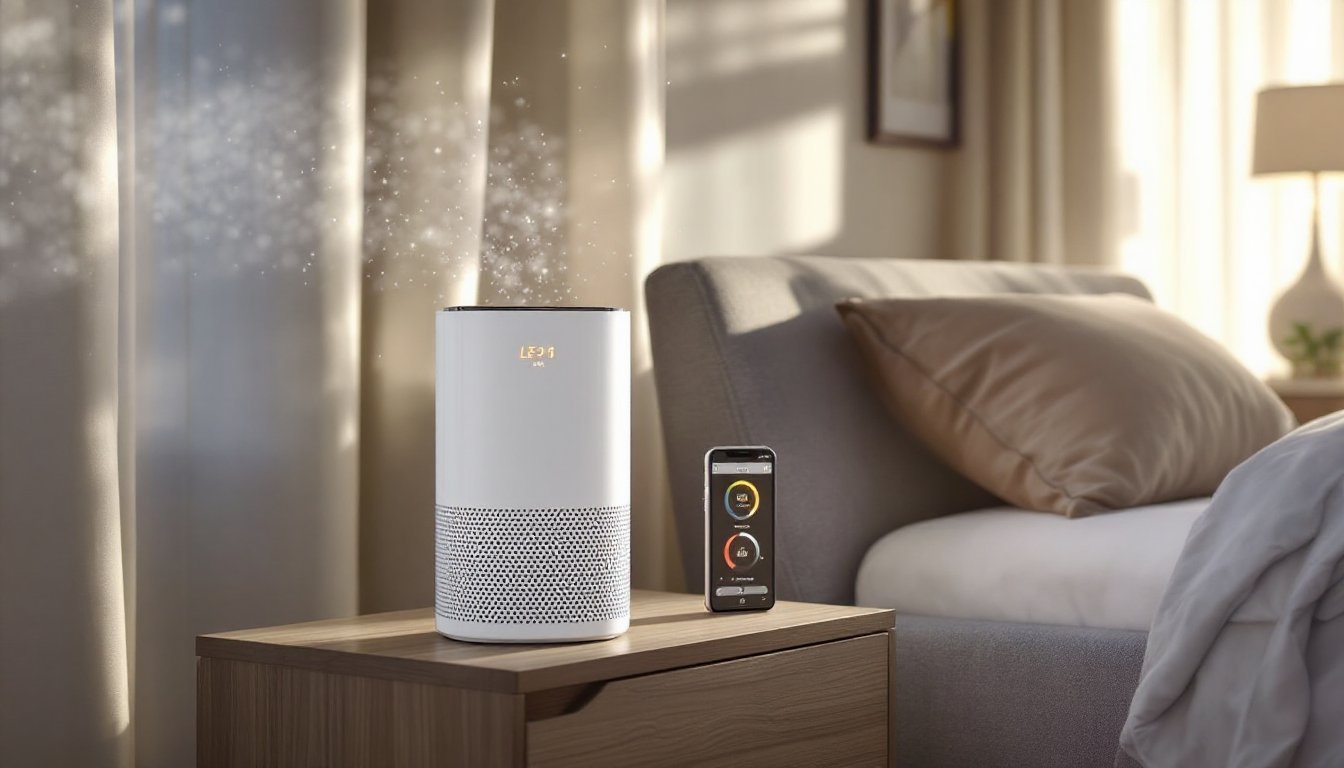
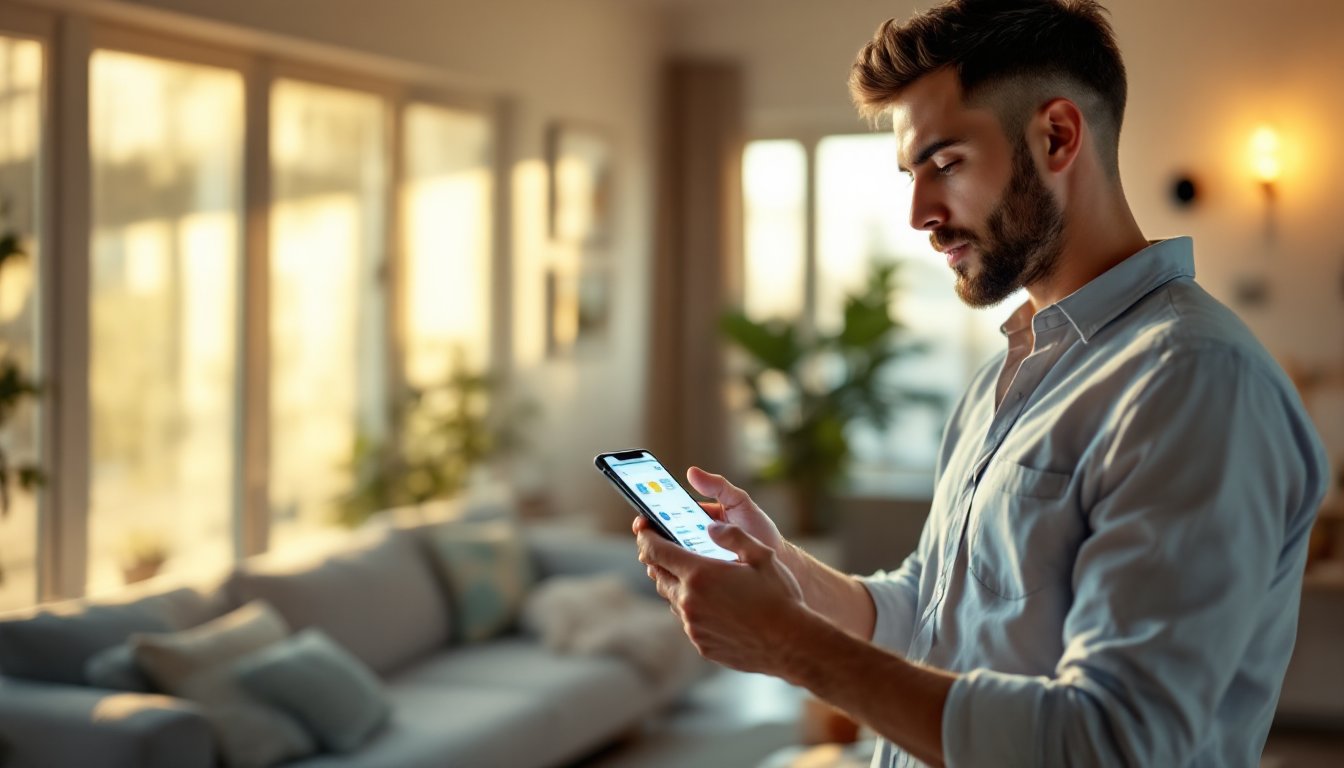
A smart home manager app is the central hub software that lets you control multiple smart devices from one place. Instead of opening separate apps for your thermostat, lights, security cameras, locks, and plugs, you’re managing everything from a unified dashboard on your phone. The app communicates with a physical hub, usually a dedicated device like an Amazon Echo, Google Home, Apple HomePod, or Samsung SmartThings hub, that acts as the radio tower for all your wireless commands.
Why does this matter? Consistency and control. Without a manager app, your smart home feels fragmented. You’re hunting for the right app each time you want to adjust the temperature or check if you locked the front door. With a manager app, you’ve got all your controls in one place, plus the ability to create automations and routines that tie multiple devices together. You can set a “Goodnight” scene that locks the doors, arms the security system, and dims all the lights in one tap.
For DIY enthusiasts, a manager app also simplifies setup. Many devices require pairing with the hub through the manager app before they’ll work, so it becomes your onboarding tool as well as your daily control center. The app is where you’ll troubleshoot connection issues, update firmware, and manage permissions if other household members need access.
Key Benefits for Homeowners and DIY Enthusiasts
A well-designed smart home manager app offers several concrete benefits that go beyond convenience.
Simplified Control: Tapping one button to arm security, lock doors, and kill lights as you leave the house saves time and mental overhead. For households with multiple people, everyone accesses the same system, so there’s no confusion about whether something’s been done.
Automation and Routines: This is where smart homes earn their name. Create an “Away” routine that adjusts your thermostat to an energy-saving temperature and turns off unnecessary devices when the last person leaves. Set motion sensors to trigger porch lights at dusk. Schedule your coffee maker to start 10 minutes before your alarm. These automations reduce manual control and cut energy waste.
Remote Access: Check your security cameras, lock your front door, or adjust the heat from anywhere with an internet connection. Forgot to lock up? You can do it from the car. Stuck in traffic and realize you left the garage open? Secure it from your phone.
Energy Monitoring: Many manager apps show you which devices are drawing power and let you identify energy hogs. A smart home manager app lets you set schedules to avoid peak usage times and reduce utility bills.
Peace of Mind: Real-time alerts notify you of unusual activity, a door opening when no one’s home, motion detected at 3 a.m., or a water leak sensor triggering. You’re never truly out of touch with what’s happening in your house.
For DIY folks specifically, a manager app also tracks device status and gives you a quick view of your network health, making troubleshooting much faster than bouncing between individual apps.
Essential Features to Look for in a Smart Home Manager App
Not all manager apps are created equal. When evaluating options, focus on these core features.
Compatibility and Device Integration
The best manager app is only as good as the devices it supports. Check that it works with the brands you already own or plan to buy. Amazon Alexa, Google Home, Apple HomeKit, and Samsung SmartThings each have their own manager ecosystems with different device support. Some apps integrate across ecosystems, like Google Home managing some Alexa devices, but compatibility isn’t universal.
If you have a mix of brands, look for a manager app that bridges multiple platforms. Some third-party solutions act as universal hubs, though they often require additional hardware. Before committing to a specific hub or app, verify that all your current and planned devices show up on the compatibility list.
User Interface and Ease of Use
You’ll be opening this app multiple times daily. A cluttered or confusing interface becomes frustrating fast. The best apps organize devices by room (so you’re not scrolling past bedroom lights when you want to adjust the kitchen thermostat). Look for customizable dashboards where you can arrange frequently used controls front and center.
Tap time matters too. Controls should respond instantly or within a second or two. Sluggish performance, even by half a second, feels broken. Check user reviews for responsiveness complaints before downloading.
Also confirm that automation setup isn’t buried three menus deep. If creating a routine requires navigating through convoluted settings, you’ll stop using that feature. Ideally, you should reach automation and routine controls within two taps from the home screen. Smart Home Tech Tips: walks through these interfaces in more detail.
How to Set Up and Optimize Your Smart Home Manager App
Setup varies slightly depending on your hub choice, but the general workflow is straightforward.
Step 1: Install the Hub Hardware
Position your smart home hub in a central location in your house, preferably where WiFi is strong and centrally placed. A closet or laundry room often works better than a corner bedroom because the signal travels more evenly. Plug it in, connect it to your home network (usually via WiFi, though some models offer Ethernet for stability), and follow the initial setup prompts.
Step 2: Download and Sign Into the Manager App
Grab the app for your hub from your phone’s app store. Create an account and sign in. You’ll pair the app with your physical hub during this step, so have the hub’s setup code handy (it’s usually on a sticker or in the quick-start guide).
Step 3: Add Your Devices
Once the hub recognizes the app, start adding devices. Most smart devices can be “discovered” by the app if they’re already on your WiFi network. If the app doesn’t find them automatically, you’ll manually add each one by scanning a QR code or entering a setup code. This is where patience matters, device pairing can be finicky. If something won’t connect, reset the device, bring it closer to the hub, and try again.
Step 4: Organize by Room and Customize
Group devices by room (Living Room, Kitchen, Master Bedroom, etc.). This makes daily control intuitive. Then customize your home screen to show the controls you use most. Keep rarely touched devices tucked into their room folders to reduce screen clutter.
Step 5: Set Up Automations and Routines
Once everything’s connected and organized, build your automations. Start simple: “Goodnight” routine that locks doors and arms security. “Goodbye” routine for when you leave. Then add time-based automations like “Turn on kitchen lights at 7 a.m.” or “Lower heating by 2 degrees at 11 p.m.” Test each automation to make sure it works as expected.
For optimization, revisit your setup seasonally. In winter, adjust your thermostat automations to avoid heating an empty house. In summer, shift lighting schedules to match sunset times. Top Smart Home Tech to Upgrade Your Living Space covers additional devices you might layer in after your initial setup. Review your device logs monthly to identify devices that rarely connect or frequently drop offline, these are candidates for repositioning, hub placement adjustment, or replacement.
Security and Privacy Considerations for Smart Home Apps
Control from anywhere sounds great until you remember that “anywhere” includes potential intruders. Security and privacy deserve serious attention.
Use a Strong, Unique Password
Your manager app is the gateway to your entire smart home. If someone cracks your password, they control your locks, cameras, and lights. Use a password manager to generate and store a complex password, at least 16 characters, mixing uppercase, lowercase, numbers, and symbols. Never reuse passwords across accounts.
Enable Two-Factor Authentication (2FA)
Nearly every major manager app offers 2FA, usually through an authenticator app like Google Authenticator or Authy, or via SMS codes. This adds a second verification step even if someone has your password. Enable it immediately, it’s non-negotiable for smart home access.
Limit User Access and Permissions
If you’re giving family members or a trusted neighbor access, don’t grant full control. Most manager apps let you restrict what people can do. A guest might control lights and thermostats but not locks or security cameras. A housekeeper might only access certain rooms on certain days. Granular permissions reduce risk if an account is compromised.
Keep Firmware Updated
Your hub and all connected devices release firmware updates that patch security vulnerabilities. Check for updates monthly in your manager app settings. Most hubs can auto-update, but confirm this is enabled. Outdated firmware is a major security liability.
Review Privacy Policies and Data Handling
Understand what data your manager app collects and how it’s stored. Does it log your automations? Are video feeds encrypted? Is your location data transmitted only when you’re accessing the app remotely, or constantly? Privacy policies vary between Amazon, Google, Apple, and Samsung. Read them, especially if you have cameras or microphones connected. Best smart home hubs for 2026 includes privacy assessments of major platforms.
Use a Dedicated Home Network (Optional but Recommended)
If your WiFi setup supports it, create a separate network specifically for smart home devices. This isolates your smart home traffic from computers and smartphones handling sensitive data like banking or medical information. Your router’s admin settings usually allow creating a “guest” network, use that for smart devices.
Monitor Unusual Activity
Check your app’s login history and active sessions occasionally. If you see logins from unfamiliar locations or devices, change your password immediately. Some manager apps let you set up alerts for security events like failed access attempts or physical tampering with sensors. Enable these notifications.